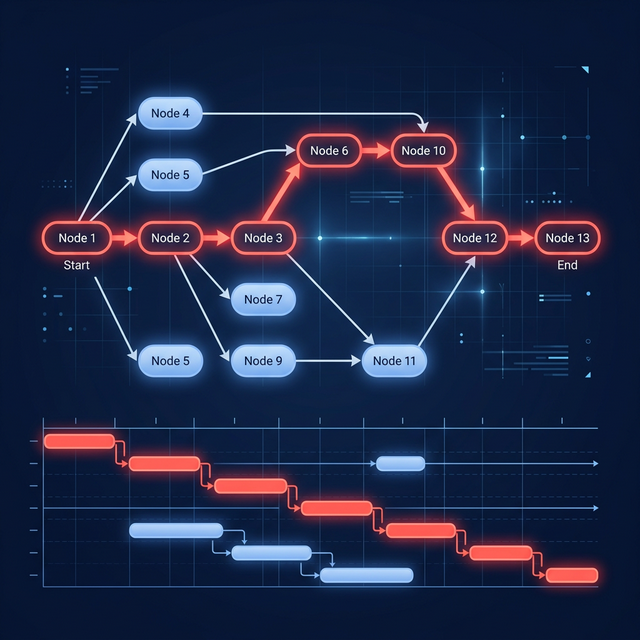
Use Excel or Google Sheets for a small, stable plan that needs custom calculations. Move to Asana or a Gantt tool when dependencies, automatic rescheduling, ownership, notifications, or auditability become daily needs.
Should you manage a project in Asana or a spreadsheet?
Use Excel or Google Sheets when the plan is small, stable, calculation-heavy, and maintained by one clear owner. Move to Asana when assignment, notifications, approvals, comments, and cross-team visibility matter. Choose a dedicated Gantt tool when dependency logic, critical path, and schedule recalculation are the primary job.
There is no universal task-count cutoff. A 100-row checklist can work perfectly in a spreadsheet; a 12-task launch with strict dependencies can outgrow one immediately. The decisive question is not “How many rows?” but “What must happen automatically when one date or decision changes?”
Checked on 18 October 2026: Asana’s plans and scheduling features were checked against Asana’s official pricing page, and Google Sheets’ timeline view against Google’s own help and pricing pages. Spreadsheet capabilities vary by edition and by any formulas, scripts, or add-ins a team builds.
Is a spreadsheet good enough for project management?
Yes, when the spreadsheet is serving as a transparent plan rather than pretending to be a workflow engine. It is usually enough when:
- one person owns structural changes;
- dates rarely move and dependencies are light;
- the team already has a reliable update routine;
- custom calculations matter more than alerts;
- stakeholders consume a static status table or chart;
- a missed update has limited downstream impact.
A common Excel recipe, described in Microsoft’s support pages, formats a stacked bar chart so it looks like a Gantt chart. That is useful visualization, but it does not create a project-scheduling engine. Excel can recalculate dependencies if someone designs formulas, macros, or scripts to do it; the chart recipe does not maintain that logic for you.
Google Sheets has a built-in timeline view (Insert → Timeline) that turns rows with dates into cards on a timeline. Google lists it for Google Workspace editions, starting with Business Starter at $7 per user/month on the annual plan, and Google’s help pages for the view do not mention dependencies or critical path. Sheets itself is free with a Google Account.
What breaks first when projects are managed in Excel?
The first failure is usually not the file. It is the coordination process around the file.
- Dates stop being causal. A predecessor slips, but successor dates stay unchanged until someone notices.
- Ownership becomes ambiguous. A name in a cell does not automatically notify, remind, or escalate to that person.
- Comments leave the plan. Decisions move into email or chat, separating context from the affected work.
- Status becomes stale. One owner must chase updates and reconcile several versions.
- The chart becomes fragile. Inserted rows, copied formulas, filters, and manual colors can silently distort the view.
Cloud spreadsheets reduce version conflicts because several people can edit the same sheet at once, but they do not automatically add task semantics. A row is still just a row until formulas, scripts, and team conventions turn it into a task.
What does Asana do that a spreadsheet does not?
Asana treats work as connected tasks rather than cells. A task can have an assignee, dates, and dependencies, and the same work can appear in several views, including Timeline and Gantt on paid plans, without maintaining separate copies.
On the current Starter plan ($10.99 per user/month billed annually, $13.49 monthly), Asana includes Timeline and Gantt views and task dependencies. Critical path requires Advanced ($24.99 per user/month billed annually). The free Personal plan, for up to 2 users, has no Timeline, Gantt, or task dependencies.
That does not make Asana universally better. It makes Asana better at enforcing a shared operating process.
What do spreadsheets still do better than Asana?
Spreadsheets remain superior for several jobs:
- Ad hoc calculations: formulas, pivots, statistical analysis, and financial models are native.
- Arbitrary layout: any cell can contain any value, and the document can mix assumptions, calculations, and presentation.
- Room for data: a single Google Sheets spreadsheet can hold up to 20 million cells.
- Data portability: CSV and XLSX are understood by nearly every business system.
- Local/offline control: a workbook can live entirely on a device or controlled file share, and Google Sheets can also be edited offline.
- Low-friction prototypes: a new tracker can begin in seconds without defining a workflow.
- Existing skill: most organizations already have people who can inspect and repair a workbook.
Asana is intentionally opinionated. That structure produces notifications and consistency, but it is less flexible than a blank grid for modeling an unusual budget, forecast, or scenario.
How do Excel, Asana, and a dedicated Gantt tool compare?
| Capability | Excel / Google Sheets | Asana Starter | Dedicated Gantt tool |
|---|---|---|---|
| Basic task list | Excellent | Excellent | Excellent |
| Custom formulas | Excellent | Limited compared with a spreadsheet | Usually limited |
| Automatic dependency rescheduling | Only if designed with formulas/scripts | Dependencies on Starter; test how dates shift | Core capability |
| Dependency visualization | Manually built | Timeline and Gantt links | Core capability; often multiple link types |
| Critical path | Manual/custom model | Advanced plan, not Starter | Common; plan availability varies |
| Baseline comparison | Copy/version manually | Check Asana’s current help pages | Common; depth varies |
| Assignment and reminders | Manual or scripted | Native | Native in cloud tools |
| Comments attached to tasks | Cell comments, limited workflow | Native task conversations | Usually native |
| Multi-user editing | Yes in cloud editions | Yes | Yes in cloud products; not all desktop tools |
| Version history | File/cloud history | Activity and task history | Varies |
| Offline use | Strong; desktop Excel and Google Sheets both work offline | App/browser dependent | Desktop tools strong; cloud tools vary |
| Initial cost | Google Sheets is free with a Google Account; Excel is often already licensed | Personal free for up to 2 users, without Timeline or Gantt; Starter $10.99/user/month annual | Free to enterprise pricing |
| Learning curve | Low to start, high for complex models | Moderate | Moderate; higher for formal scheduling |
“Dedicated Gantt tool” is a category, not a guarantee. Verify the exact dependency types, baseline behavior, calendars, and critical-path method in the product being evaluated. The best free Gantt chart tools compares concrete products rather than category labels.
Figures and their sources
Asana
| Figure | Value | Source |
|---|---|---|
| Free plan (Personal) | Up to 2 users; no Timeline, Gantt or task dependencies | Asana pricing |
| Starter (Gantt and dependencies) | $10.99 per user per month billed annually, $13.49 monthly | Asana pricing |
| Critical path | Advanced and above, from $24.99 per user per month billed annually | Asana pricing |
| Rating | 4.5 out of 5 from 13,764 reviews | GetApp |
Google Sheets
| Figure | Value | Source |
|---|---|---|
| Sheets itself | Free with a Google Account; 15 GB of storage shared with Gmail and Drive | Google One help: storage |
| Timeline view | Listed for Google Workspace editions only | Google Docs Editors help: timeline view |
| Cheapest Workspace plan | Business Starter, $7 per user per month on the annual plan | Google Workspace business editions |
| Size limit | 20 million cells per spreadsheet | Google Drive help: file limits |
Checked on .
At what project size should you switch?
Do not switch at an arbitrary number such as 30 tasks. Switch when the cost of manual coordination exceeds the cost of the tool and migration.
Five signs the project has outgrown a spreadsheet
- One changed date requires editing several other dates by hand.
- The project owner spends every reporting cycle asking people for status.
- Two versions of the plan circulate and nobody knows which is authoritative.
- Approvals, files, and decisions cannot be traced to the affected task.
- Leadership asks which delay moves the finish date, and the sheet cannot answer confidently.
A practical threshold is reached when two or more signs recur every week. At that point, the spreadsheet is no longer simpler—it is a custom application without a product team maintaining it.
Should you choose Asana or a dedicated Gantt tool?
Choose Asana when work intake, ownership, comments, and multiple team views matter most. Its Gantt and Timeline views on Starter and above are real scheduling surfaces, not merely exported images. Advanced adds portfolios and critical path.
Choose a dedicated Gantt tool when the schedule network itself is the source of truth. Look for four dependency types, lag and lead, working calendars, critical path, float, baselines, and reliable import/export. GanttPRO includes dependencies, critical path, and baselines on its Core plan; Smartsheet includes Gantt, dependencies, and critical path on Pro; GanttProject is a free desktop option with baselines.
How can you move an Excel project plan into Asana?
Asana’s help center has a page on importing and exporting projects; check its current steps and supported formats before you start. A clean migration looks like this:
- Duplicate the workbook and freeze the original as a read-only archive.
- Put one task on each row; remove merged cells and decorative header rows.
- Create explicit columns for task name, description, assignee email, start date, due date, section, and custom fields.
- Save that clean table in the file format Asana’s importer accepts.
- In Asana, create the target project and open its import option.
- Map columns, run the import, and reconcile row counts and dates.
- Rebuild dependencies, rules, and permissions; a flat file does not encode every behavior of the old workbook.
- Keep the source workbook read-only until one complete reporting cycle passes.
If the objective is a Gantt-first plan, import the workbook into GanttFather instead, check its dates and structure, and then add the dependencies in GanttFather, because they are not part of its Excel import. Start with a purpose-built schedule such as the software release timeline, marketing campaign timeline, event planning timeline, or client delivery plan.
What is the safest hybrid workflow?
Many teams should not choose one system exclusively:
- keep financial models and scenario calculations in Excel;
- keep assignments, approvals, comments, and routine workflow in Asana;
- keep the dependency-driven delivery schedule in a Gantt tool when schedule rigor is required;
- publish only the agreed summary fields between systems;
- name one system of record for each data type.
The danger is bidirectional ambiguity. If both the spreadsheet and Asana can independently change due dates, the team has two sources of truth. Define which system owns dates before integrating them.
When should you choose GanttFather instead of Asana or a spreadsheet?
Choose GanttFather when the dependency-driven schedule is the source of truth and a small group must maintain it for a larger review audience. It is free for 1 project you own, with 2 editors and unlimited free viewers. Each extra project is US$5 a month (US$2.50 a month billed yearly), and an extra editor seat is US$2 a month (US$1 a month billed yearly). It supports FS/SS/FF/SF dependencies with lag and lead, critical path, Excel import and export, and live updates when others edit. Excel is useful for exchanging task data, but dependencies are not part of the Excel import and export, so the schedule logic lives in GanttFather rather than in formulas.
It does not replace Excel’s modeling freedom or Asana’s broader work-intake workflow. GanttFather also has no baselines, no comments, and no resource leveling. See GanttFather vs Asana for the focused trade-offs.
Create a free GanttFather project and import a representative workbook to test whether the schedule—not the surrounding workflow—is the real bottleneck.
Frequently asked questions
Is Asana better than Excel for project management?
Asana is better for multi-person ownership, reminders, workflow, dependencies, comments, and auditability. Excel is better for flexible calculation, quick prototypes, and local data analysis. The project determines which strengths matter.
Can Excel automatically reschedule dependent tasks?
Not from the usual stacked-bar Gantt recipe. Excel can be engineered to reschedule through formulas, macros, scripts, or add-ins, but the dependency model and its maintenance then belong to the workbook’s author.
Does Asana have a real Gantt chart?
Yes. Asana lists separate Timeline and Gantt views on Starter and above, together with task dependencies. Critical path needs Advanced.
Is Asana Timeline available on the free plan?
No. Asana’s current pricing page lists Timeline and Gantt from Starter, which is $10.99 per user/month billed annually or $13.49 monthly. Personal is free for up to 2 users, without Timeline, Gantt, or task dependencies.
How many tasks are too many for a spreadsheet?
There is no reliable universal number. A stable 100-row register may be fine, while a 12-task dependency chain can be risky. Repeated manual rescheduling, status chasing, and version confusion are better switching signals than row count.
Can you import an Excel plan into Asana?
Asana’s help center has a page on importing and exporting projects; follow its current steps and file format. Prepare a clean table first, verify dates and assignees after the import, then rebuild the dependencies and automation that a flat file does not carry.
Sources
- Microsoft Support, Present Your Data in a Gantt Chart in Excel
- Asana, Pricing
- Asana, Pricing feature table (plain text)
- Asana Help Center, Project Importing and Exporting
- Google Docs Editors Help, Timeline view in Google Sheets
- Google Workspace Admin Help, Business editions
- Google Workspace, Google Sheets
- Google One Help, Storage
- Google Drive Help, Files you can store in Google Drive
- GanttPRO, Pricing
- Smartsheet, Pricing
- GanttProject, Free Gantt chart software