Link two tasks in GanttFather by dragging between bars or from the task's Dependencies tab, pick FS, SS, FF, or SF, and add a lag in days. Includes the limits that block a link.
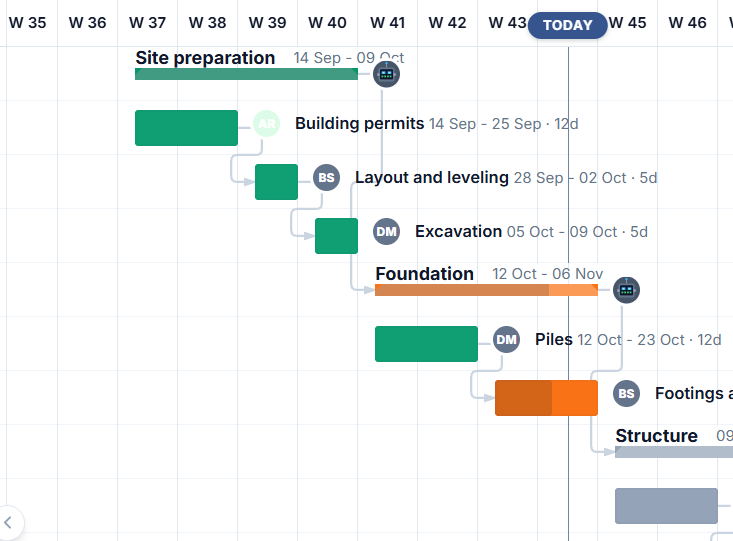
To set a dependency in GanttFather, open the task that must wait, go to its Dependencies tab, click + New dependency, pick the task it depends on, choose a type (FS, SS, FF, or SF), enter a Lag in days if you need one, and click Save. In the Gantt chart you can also drag from a connector dot on one bar to another bar. The arrow between the bars shows the link.
Before you start
- You need edit access to the project.
- Both tasks must have the same parent. Two top-level tasks count as siblings, and so do two subtasks of the same parent. A link across different parents is not allowed.
Link two tasks from the task details
The task you open is the successor: it waits. The task you pick is its predecessor.
- Hover the successor’s name in the task list and click the Details icon (expand arrows), or double-click its bar.
- Open the Dependencies tab. The number beside it counts the links the task already has.
- Click + New dependency.
- In Select task…, search for and click the predecessor. Only sibling tasks are listed.
- Pick the type: FS, SS, FF, or SF (see the table below).
- Enter the Lag in days. Use 0 for none and a negative number for overlap.
- Click Save.
The link appears in the list with its type, the predecessor’s name, and “Lag: N days” when the lag is not zero.
Link two tasks by dragging in the Gantt chart
- Point at the predecessor’s bar. A connector dot shows at its start and at its end.
- Drag from one of those dots to the successor’s bar.
- Release the mouse over the left half of the successor to link to its start, or over the right half to link to its finish.
The dots you use set the type, and the lag is 0:
| Drag from | Release on | Type |
|---|---|---|
| End of predecessor | Start of successor | FS |
| Start of predecessor | Start of successor | SS |
| End of predecessor | End of successor | FF |
| Start of predecessor | End of successor | SF |
The four types and lag
| Type | Name | The successor… |
|---|---|---|
| FS | Finish-to-Start | starts after the predecessor finishes |
| SS | Start-to-Start | starts after the predecessor starts |
| FF | Finish-to-Finish | finishes after the predecessor finishes |
| SF | Start-to-Finish | finishes after the predecessor starts |
Lag is a whole number of days from -365 to 365. FS with a lag of 2 means the successor starts two days after the predecessor finishes; FS with a lag of -1 lets it start one day before. Lag counts calendar days, and a moved task is placed on a working day. For the concepts behind each type, read What are Gantt chart dependencies?.
Change or remove a link
- Change the type: right-click the arrow in the Gantt chart and pick a type under Change type, or use the type selector in the task’s Dependencies tab.
- Change the lag: the Dependencies tab does not edit the lag of an existing link. Remove the link and add it again with the new lag.
- Remove it: click the trash icon (Remove dependency) in the Dependencies tab, or right-click the arrow and choose Delete dependency.
What happens to the dates
Auto-reschedule is on in new projects, so dates follow the links. Older projects keep their own setting, and the owner can turn it off in Settings under Preferences. Where Auto-reschedule is off, a task is in manual mode: its dates are yours, and the tooltip reads “Dates controlled manually. Dependencies are visual only”. If the link is broken, the task shows Schedule conflict (“This task starts before its predecessor ends”).
To have dates follow the links in a project where Auto-reschedule is off:
- Turn on the Auto-reschedule switch in that task’s Dependencies tab, for one task.
- Or turn on Auto-reschedule in the project’s Settings, under Preferences, for every open task.
With Auto-reschedule on, a new or changed link moves the successor forward only if it violates the link, and the toast reads “N tasks rescheduled automatically” with Undo. Removing a link never pulls a task earlier. Done tasks do not move, and parent tasks have no switch of their own because their dates come from their subtasks.
Common problems
- Symptom: “This task has no siblings available to link.” Cause: the task has no other task under the same parent. Fix: add a sibling, or move the task so it shares a parent.
- Symptom: “Dependencies must be between tasks that share the same parent.” Cause: the two tasks sit under different parents. Fix: link the two parent tasks instead, or move one task.
- Symptom: “Cannot create dependency: would form a cycle”. Cause: the predecessor already depends on this task, directly or through others. Fix: remove the link that closes the loop.
- Symptom: “A dependency with this task already exists.” Cause: the pair is already linked. Fix: change the type on the existing link instead.
- Symptom: “N dependencies removed because tasks no longer share a parent.” Cause: you moved a task to another parent, and links across parents are removed. Fix: re-create the links among the new siblings.
- Symptom: dates did not move after linking. Cause: Auto-reschedule is off for the project or the task, or the task is Done. Fix: turn on Auto-reschedule for the task or the project.
A task can have up to 100 predecessors.
Related guides
- What are Gantt chart dependencies?
- How to add tasks and subtasks in GanttFather
- How to turn on and read the critical path in GanttFather
- How to create a project in GanttFather
- Float and slack in project management
How do you set task dependencies in GanttFather?
Open the task that must wait, use its Dependencies tab to pick the predecessor, choose FS, SS, FF, or SF, and add a lag in days. Or drag from a connector dot on one bar to a sibling bar in the Gantt chart.
Try GanttFather on a small project: link three tasks, turn on Auto-reschedule, and watch the successors follow the first date change.
Frequently asked questions
Can I link tasks that have different parents?
No. A dependency joins tasks that share the same parent. Link the parent tasks, or move one task under the other’s parent.
Can lag be negative?
Yes. The lag runs from -365 to 365 days, and a negative lag lets the successor overlap its predecessor.
Do dependencies move dates automatically?
Only when Auto-reschedule is on for the task or the project. It is on in new projects; older projects keep their setting. In manual mode the links are visual and a broken one is flagged as a schedule conflict.
Want to skip the reading?
GanttFather is free forever, with no card and no trial.