Switch between the Gantt Chart, List and Board tabs and see what each view shows and edits: timeline bars, a task table, or status columns on the same tasks.
To switch views, click Gantt Chart, List or Board in the tab bar at the top of the project. All three show the same tasks. Gantt Chart draws them as bars on a timeline, List shows them as a table, and Board groups them as cards in columns by status.
Change a task in one view and the others show the change. Pick the view that fits the question you are asking.
Before you start
- The three views are in every project and for every role. Viewers can look at all of them, but cannot change anything.
- The tab bar also holds Reports, which is not a task view. A project’s people and settings are behind the gear next to its name. See the related guides for Reports and for the project’s settings.
How to switch views
- Open the project.
- In the top bar, click Gantt Chart, List or Board.
- Click New task in the toolbar to add a task in any of the three views. Click a task or card, or double-click a bar, to open its details.
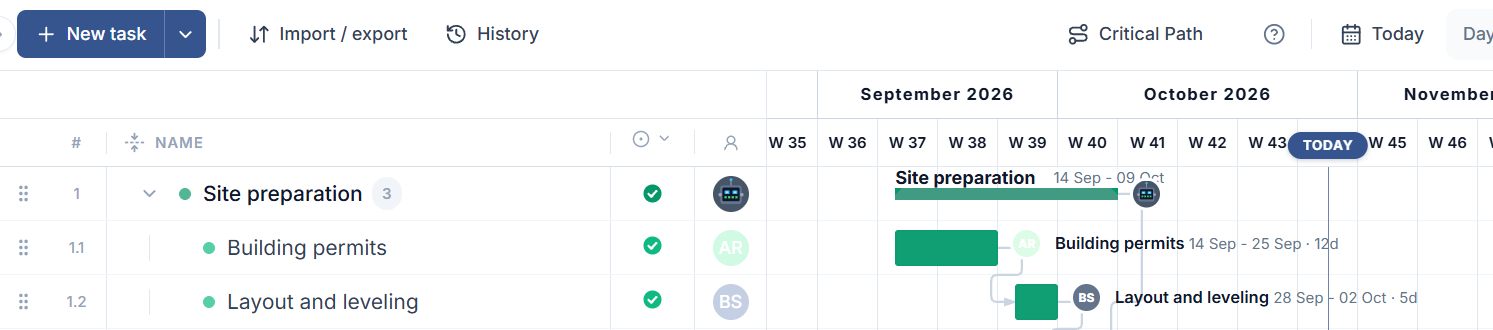
Gantt Chart: when and in what order
The left side is the task list with the hierarchy. The right side is a timeline with one bar per task, a line for today, and arrows for dependencies.
- Zoom the timeline with the scale buttons (Hours, Days, Weeks, Months, Quarters, Years, some under More). Click Today to jump to the current date.
- Click Critical Path to highlight the longest chain of dependent tasks in red. It needs dependencies between tasks.
- Editors can drag a bar to move it, drag an edge to change its length, drag the progress marker below a bar, and drag from a bar’s connector dot to another bar to create a dependency.
- A parent task (a group) shows a thin summary bar. Its dates come from its subtasks, so you cannot drag it.
Use it to plan dates, sequence work and see what depends on what.
List: every task and its fields
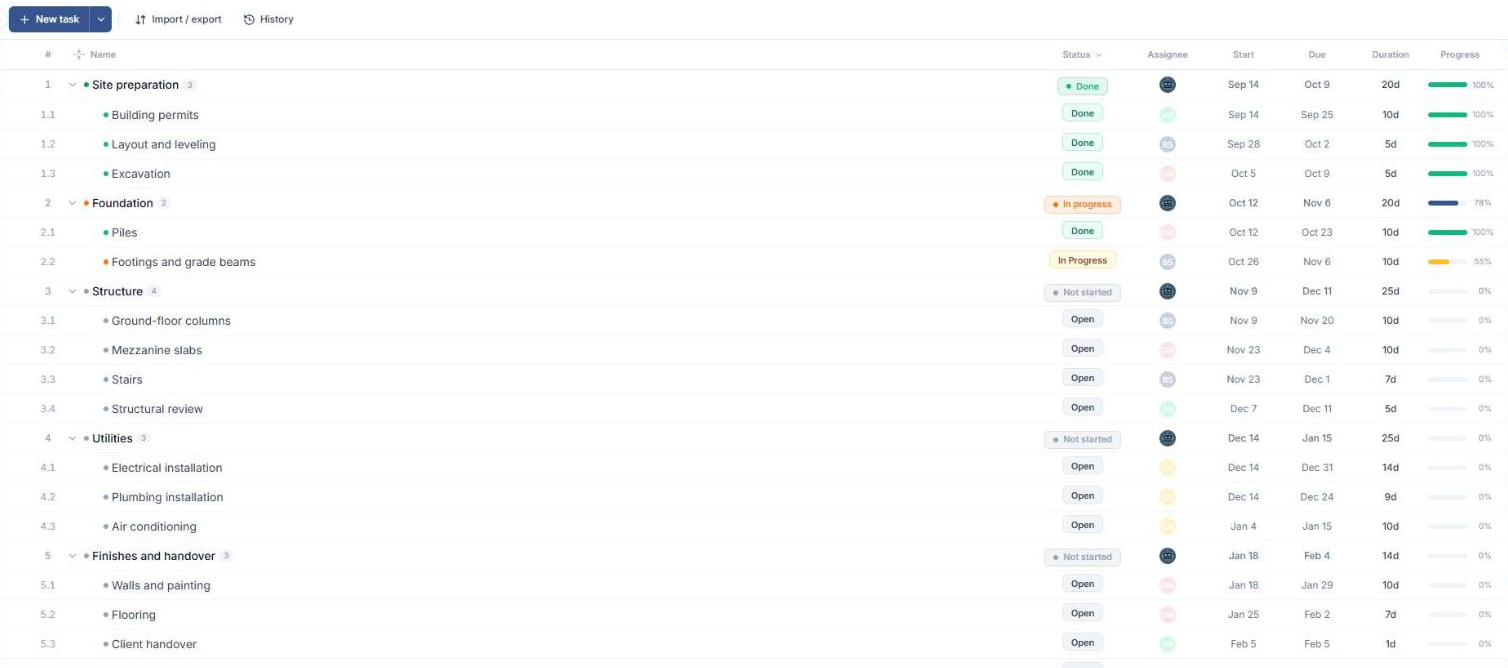
The List view is a table. One row per task, with the hierarchy shown by indentation and a number for each level.
- Columns: Name, Status, Assignee, Start, Due, Duration and Progress. On a narrow window some columns are hidden: Assignee needs a medium width, the dates a large one, Duration and Progress an extra-large one.
- Click the arrow on a parent row to expand or collapse its subtasks. Expanding or collapsing is shared with the Gantt view, so both stay in step.
- Drag the grip on the left of a row to reorder tasks or change a task’s parent.
- The Status header has a menu: Auto, Full labels, Icons only and Hide column. The choice is saved per project and is shared with the Gantt task list.
Use it to scan and edit many tasks quickly.
Board: where each task stands
The Board has one column per active status of the project, in the order set in the project’s settings. A new project has Open, In Progress, Done, Closed and On Hold. If the owner defines custom statuses, those become the columns.
- Each card shows the parent task, the task’s number, its title, a priority chip (only High or Low, never Medium), the due date, the duration and the assignee. Progress shows as a colored line along the bottom edge. A past due date on an unfinished task is marked with ”!”.
- Only tasks without subtasks appear as cards. Parent tasks (groups) are not cards.
- Drag a card to another column to change its status. GanttFather adjusts progress to match: a Done status sets 100%, a not-started status sets 0%, an In Progress status sets 25%, and On Hold leaves progress as it is.
- Use a column’s collapse control (Collapse column) to shrink it to a narrow strip. You can still drop cards on it.
Use it to run work by status, for example in a stand-up.

What happens next
- Dependency arrows are drawn on the Gantt Chart, and the Critical Path button is in its toolbar.
- Moving a card on the Board changes the task’s status and progress.
- A public view-only link opens the Gantt chart only. It does not include the List or the Board.
Common problems
- You cannot drag cards or bars. You are a viewer, or the project is read-only (for example locked after a plan lapses). Ask the owner or an admin for the Editor role.
- A column is missing on the Board. The project has no active status for it. The owner can turn statuses on or off in the project settings.
- A task is on the Gantt chart but is not a card. It has subtasks. Only tasks without subtasks appear as cards, so open its subtasks instead.
- List columns are missing. The window is too narrow. Widen the window, or look in the task details.
Related guides
- How to add tasks and subtasks in GanttFather
- How to set task dependencies in GanttFather
- How to invite people and set roles in GanttFather
- How to share a project with a view-only link
- How to create, download and share a report in GanttFather
- Gantt chart vs Kanban board
- How to read a Gantt chart
- Trello alternatives with a Gantt chart
Can you use a Gantt chart, a list and a Kanban board in GanttFather?
Yes. Every project has a Gantt Chart, a List and a Board tab on the same tasks. You schedule on the timeline, review fields in the table and run status in columns, without copying data between tools.
Edits show in all three views and update for the rest of the team while they work. GanttFather has no baseline bars, so the Gantt chart shows the live plan, and you can save a named version when you need to come back to an earlier state.
Open a free GanttFather project and try all three views on your own plan.
Frequently asked questions
Do the three views show the same tasks?
Yes. They share one set of tasks. The Board shows only tasks without subtasks, as cards, while the Gantt Chart and the List also show parent tasks.
Can I change a task’s status from the Gantt chart?
Yes. Change the status in the task’s row or its details, or drag the task’s card to another column on the Board.
Which view does a public link show?
The Gantt chart, read-only. The List and the Board are for members of the project.
Want to skip the reading?
GanttFather is free forever, with no card and no trial.