Create a public view-only link for your Gantt chart, copy it, turn it off or replace it. Owners and admins only; readers need no account and cannot edit anything.
To share a project with a view-only link, open the project, click Share Project in the top bar, click Generate Public Link, then click Copy and send the address. Anyone who opens it sees the plan as a read-only Gantt chart. They do not need an account and they cannot change anything.
You can turn the link off with one switch, or replace the address with Regenerate Token.
Before you start
- You must be the project owner or an admin. Editors and viewers do not see the Share Project button. If a member opens the dialog by another route, it says: “Only the project owner and admins can manage the public link.”
- Your email address must be verified to create a link, replace it, or keep it going (see “What happens next”). If it is not, the dialog says “Verify your email to share a public link.”
- A read-only project (for example one locked after a plan lapses) can turn a link off, but cannot create, regenerate or turn one on.
How to create and copy the link
- Open the project.
- Click Share Project in the top bar.
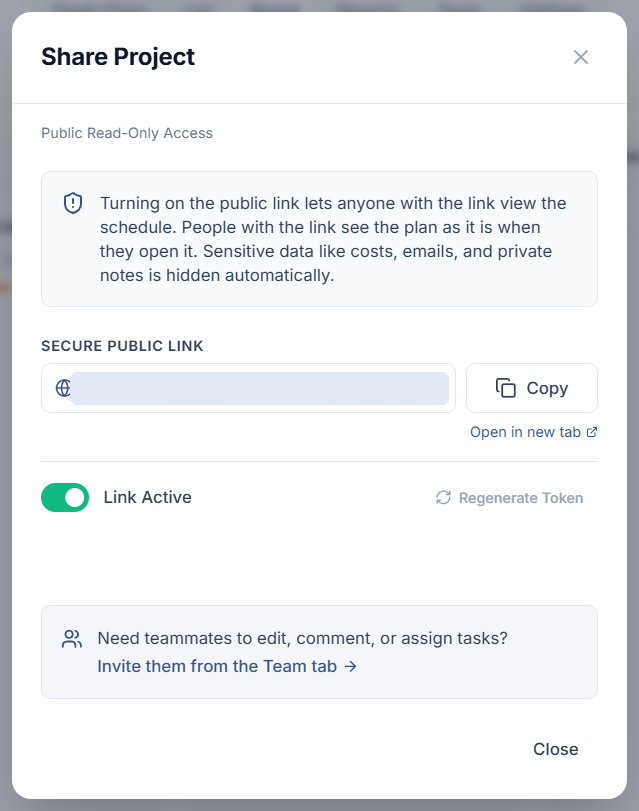
- Click Generate Public Link. The first time, the dialog shows only this button.
- The dialog now shows Secure Public Link with an address that starts with
https://app.ganttfather.com/s/, and the switch reads Link Active. - Click Copy. The button changes to Copied. If your browser blocks copying, select the address and copy it yourself.
- Send the address to your reader. To check it first, click Open in new tab.
What your reader sees
The address opens a page titled “Public View (Read Only)” with the project’s Gantt chart. The reader can scroll, change the zoom, and expand or collapse groups. Nothing they do is saved.
- The plan is shown as it is when they open the page, so later changes you make appear the next time they open or refresh it.
- Task descriptions, emails and costs are not included. People appear only if they are assigned to a task shown on the chart, by name and initials, without photos.
- The page does not ask the reader to sign in, and search engines do not index it.
How to turn the link off or on
- Click Share Project.
- Click the switch next to Link Active. It changes to Link Inactive and nobody can open the address.
- Click the switch again to turn the same address back on.
Turning the link on or off does not need a verified email.
How to replace the link
Use this when the address went to the wrong person.
- Click Share Project.
- Click Regenerate Token.
- Confirm “Are you sure? This will invalidate the existing link.”
- Copy the new address. The old address stops working at once.
What happens next
- The link keeps working while the switch reads Link Active and the person who created it is still an owner or admin of the project.
- If that person leaves the project or stops being an owner or admin, the link stops working. The dialog then says “This link stopped working because the person who shared it is no longer an owner or admin.” An owner or admin clicks Keep sharing to turn the same address back on as theirs.
- A public link shows the Gantt chart only. To let someone work on the plan, invite them from the project’s People page instead (see the related guides).
Common problems
- The dialog says “Verify your email to share a public link.” Your email address is not verified. Verify it from the email GanttFather sent you, then click Check again in the dialog.
- Your reader sees “This public link is invalid, disabled, or expired.” The link was turned off, replaced with Regenerate Token, or copied incorrectly. Check that the dialog reads Link Active and send the current address.
- The switch reads “On, but nobody can open it right now”. The link is on, but something blocks it: the creator is no longer an owner or admin, the project is inactive, GanttFather support turned the link off, or public links are paused for a while. The notice in the dialog says which one. If it asks you to keep sharing, click Keep sharing.
- There is no Share Project button. You are not the owner or an admin of this project.
- Copy and the address are grayed out. The link is off, blocked or cannot be shown. Read the notice in the dialog. If it says the link cannot be shown, make a new one.
Related guides
- How to invite people and set roles in GanttFather
- Gantt, List and Board views in GanttFather
- How to create, download and share a report in GanttFather
- How to read a Gantt chart
- Real-time collaboration in Gantt chart tools
- GanttFather features and pricing
Can you share a live Gantt chart with clients in GanttFather?
Yes. Click Share Project in a project’s top bar, generate a public link and send it. Clients, managers and partners open a read-only Gantt chart in their browser with no account, and they see the current plan every time they open it.
You decide how long the link works: turn it off with a switch, or replace it if an address reached the wrong people. For people who should edit, invite them with the Editor role from the project’s People page instead. GanttFather has no baselines, so the public chart shows the live plan, not a frozen approved version.
Create a free GanttFather project and share your first view-only link.
Frequently asked questions
Do people need a GanttFather account to open the link?
No. The address opens the read-only Gantt chart for anyone who has it, without signing in.
Can people with the link edit the project?
No. The public page is read-only. To give someone edit rights, invite them from the project’s People page with the Editor role.
Is a view-only link the same as the Viewer role?
No. A view-only link needs no account and shows the Gantt chart only. The Viewer role belongs to a signed-in member of the project, who also sees the List and Board views and the Reports tab. Viewers do not use an editor.
Want to skip the reading?
GanttFather is free forever, with no card and no trial.